
Prepare the mobile phase and check column volume
Mobile Phase Mixer works with multi-solvent blends by volume or weight and supports additives entered as a percentage, a stock solution or a solid. Its bottle checklist helps keep preparation steps visible. This module is part of the free version.
Column & Dead Volume (LC) provides column volume, flush volume and flush time. Its flush and geometry tab is free; the PRO dead-volume tab adds t₀ and linear velocity, checked against a measured value. These are different tasks, so select the tab that matches the quantity you actually need.
Transfer a method with its column and system context
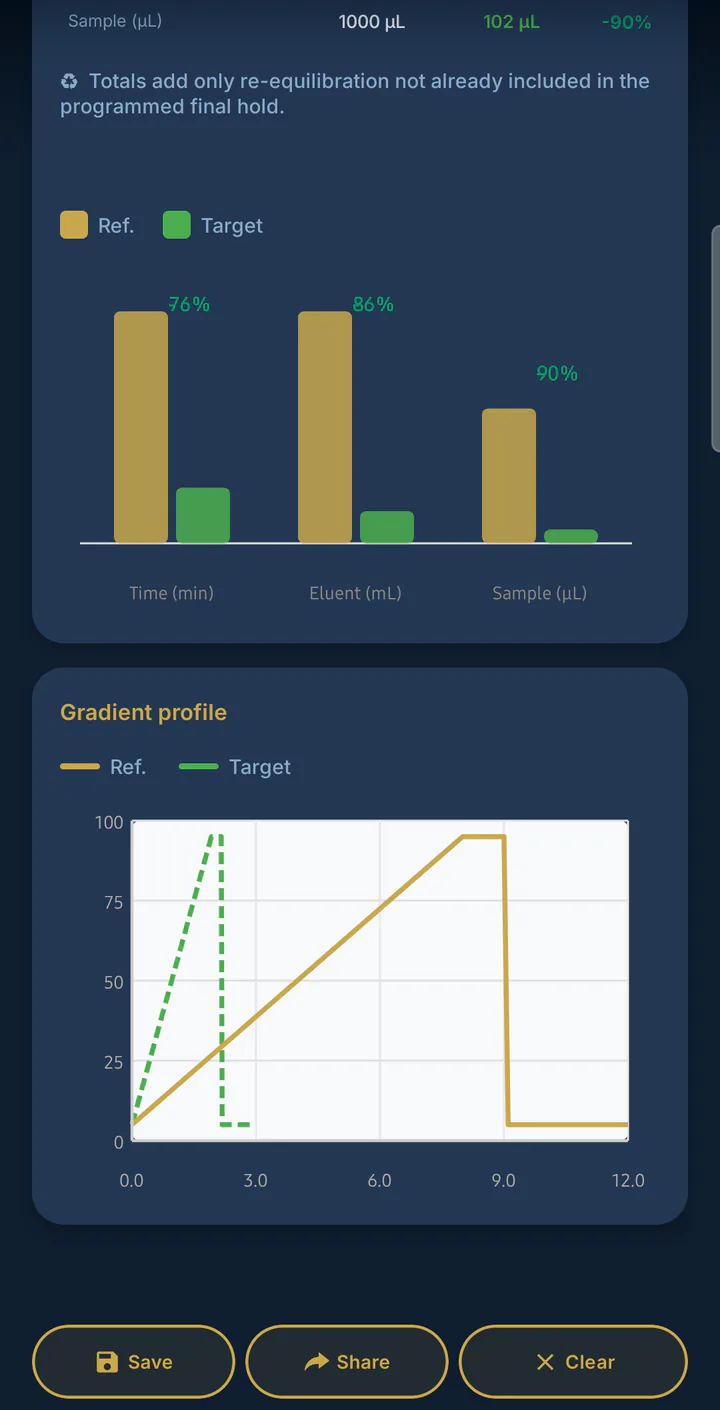
The Method Transfer capture compares a 150 × 4.6 mm column with 5 µm particles against a 100 × 2.1 mm column with 1.8 µm particles. For the conditions entered in that example, the app predicts 76% less time, 86% less eluent and 90% less sample. Those savings belong to this worked example, not every column change.
Method Transfer supports isocratic and gradient scaling, gradient-delay correction and predictions of resolution and pressure. It is a PRO module. Record the reference and target conditions together so the calculation can be reviewed against the chromatograms produced on the new setup.
System dwell volume changes when the programmed gradient reaches the column. Copying a gradient table between different systems can therefore change the separation. Agilent’s LC handbook, “Dwell volume and its impact on chromatography”, explains this effect and its relevance to method transfer.
Look beyond a single resolution result
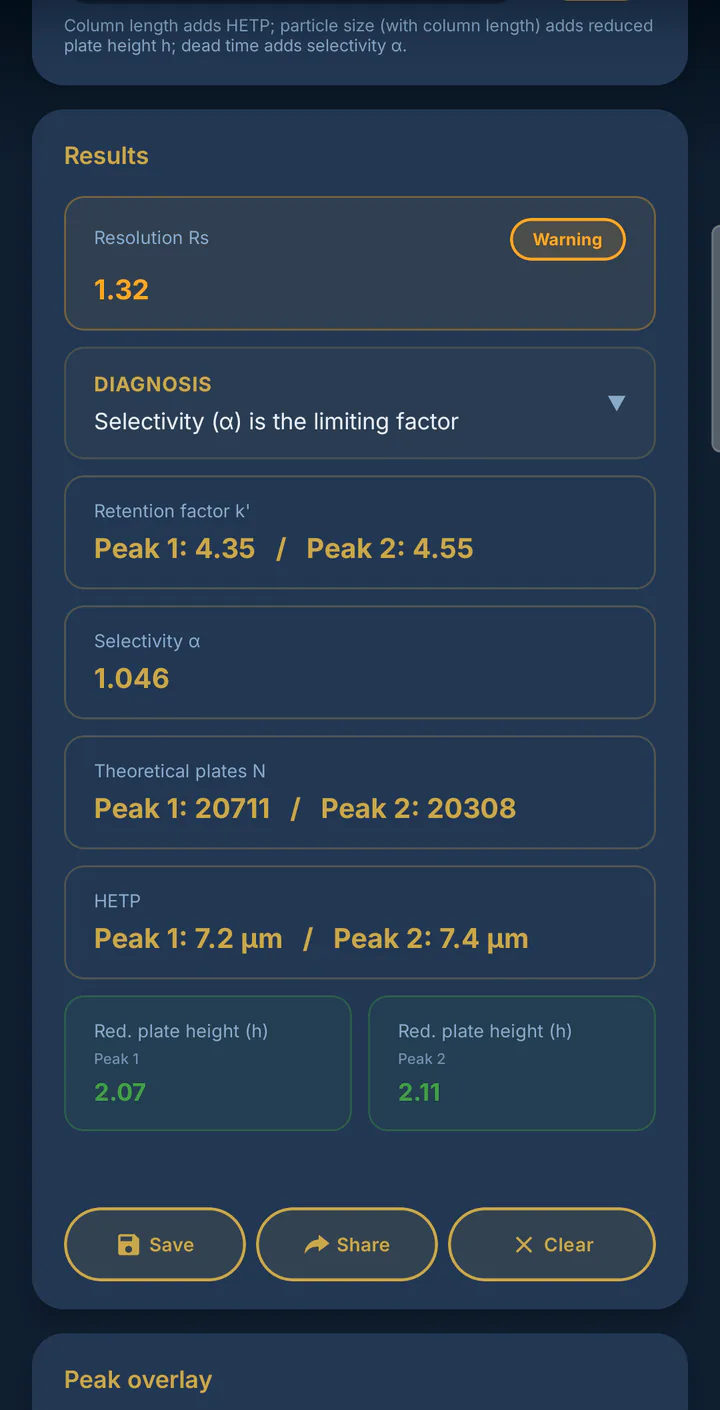
The Peak Performance capture shows Rs = 1.32 with a warning and identifies selectivity, α = 1.046, as the limiting factor. That explanation helps focus the next investigation rather than treating the warning as a complete diagnosis.
Peak Performance is a PRO module. Use the result with the method’s own suitability criteria and the observed peak shapes. The values on this screen are a demonstration of the entered example, not universal HPLC acceptance limits.
Keep track of the troubleshooting path
The HPLC troubleshooting screen follows a Yes/No path for tailing, fronting or split peaks. It retains the steps already taken so the investigation has a visible history. Guided instrument troubleshooting is part of PRO.
For a practical sequence, establish the symptom, review the inputs and conditions relevant to that symptom, then record what changed and compare the next chromatogram. The app’s prompts support that process; the observations from the instrument determine whether a change helped.
Choose the tool for the task
| Task | LabTools module | Access |
|---|---|---|
| Blend solvents and additives | Mobile Phase Mixer | Free |
| Plan column flushing | Column & Dead Volume | Free geometry tab |
| Scale a separation | Method Transfer (HPLC) | PRO |
| Assess peak parameters | Peak Performance | PRO |
| Investigate instrument symptoms | Instrument Troubleshooting | PRO |
LabTools is free to install on Android and starts with a seven-day PRO trial that ends without automatically becoming a paid subscription. Compare Free and PRO or browse all 35 modules. For quantitation alongside chromatography, see the calibration guide and LOD/LOQ example.